Does Counter-Strike 2 (CS2) keep crashing? CS games have a bad reputation for crashing at the most critical moments. This guide explains why Counter-Strike 2 crashes and offers solutions for CS2 crashes at startup, during gameplay, or after updates.
Why Does Counter-Strike 2 Keep Crashing?
Counter-Strike 2 may crash if your system does not meet the latest hardware and software requirements. Make sure your computer meets or exceeds the following minimum and recommended specifications:
| Category | Minimum Requirements | Recommended Requirements |
|---|---|---|
| Operating System | Windows 10 (64-bit) | Windows 10 (64-bit) |
| Processor | Intel Core i3-6100 / AMD FX-6300 | Intel Core i5-6600K / AMD Ryzen 5 1600 |
| Memory | 6 GB RAM | 8 GB RAM |
| Graphics | NVIDIA GeForce GTX 660 / AMD Radeon HD 7800 series | NVIDIA GeForce GTX 1060 / AMD Radeon RX 580 |
| DirectX | Version 11 | Version 11 |
| Storage | 15 GB available space | 15 GB available space |
| Network | Broadband Internet connection | Broadband Internet connection |
Follow these steps to check whether your computer meets the Counter-Strike 2 requirements:
- Click the Windows Start button.
- Open Settings (the gear icon).
- Go to System.
- Scroll down and click About.
- You will see details such as your processor and RAM here.
1. Verify the Integrity of the Game Files
If Counter-Strike 2 keeps crashing at startup, verifying the game files can resolve data corruption.
Checking the integrity of your game files is like inspecting every connection in a circuit. If even one cable is disconnected, the entire system can fail.
Fortunately, Steam has a useful feature that allows you to verify the integrity of your game files.
How Do You Verify Counter-Strike 2 File Integrity?
- Open your Steam Library and find Counter-Strike 2.
- Right-click Counter-Strike 2 and select 'Properties...' from the menu.
- In the Properties window, go to the 'Local Files' tab.
- Click the 'Verify integrity of game files' button.
This process may take several minutes while Steam checks and repairs inconsistencies or errors in the game files. Like a comprehensive inspection of a machine, it ensures that everything is working correctly.
2. Update Your GPU Drivers
Update Your GPU Drivers
Outdated drivers are a common reason for CS2 to crash, even on high-end systems.
Follow these steps:
- Visit the GPU manufacturer's website to update your graphics driver manually.
- Find the driver that corresponds to your specific graphics card model.
- Follow the on-screen instructions provided by the installer.
- Alternatively, use software such as Driver Easy to automate the process, much like taking a car to a mechanic for maintenance.
- Identify your graphics card model and download the relevant driver from the manufacturer's website for a manual update.
- Use the NVIDIA Control Panel or AMD control software for automatic update notifications, eliminating the need to check manually. Review the best NVIDIA settings for CS2 to optimize the game further.
3. Optimize the Game Settings
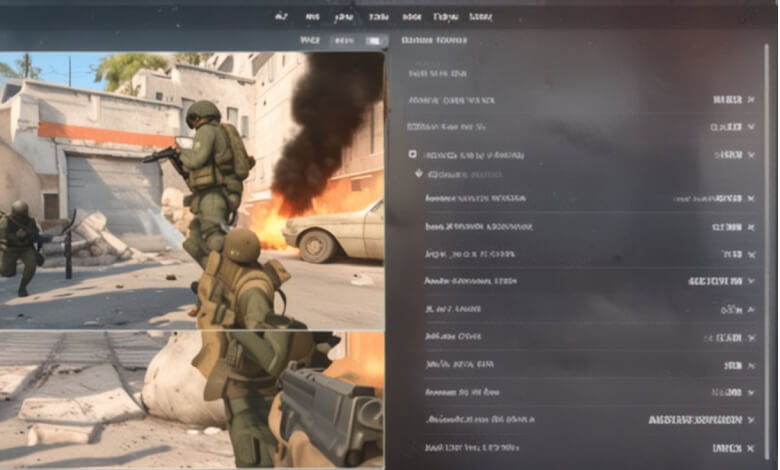
Optimize the Game Settings
Now that the hardware is in order, let us turn our attention to the game's settings. Once the hardware is ready, fine-tuning can go a long way toward ensuring optimal performance:
Configure the Graphics Settings
When configuring CS2, it can be tempting to maximize every setting for the best possible visuals. However, doing so can strain your GPU and lead to performance problems.
What really matters is finding a balance between excellent visuals and smooth performance:
| Setting | Optimal |
|---|---|
| Resolution & Aspect Ratio | 1920×1080 (16:9) |
| Global Shadow Quality | High or Medium |
| Model / Texture Detail | Medium |
| Shader Detail | High |
| Particle Detail | Low |
| Ambient Occlusion | Medium |
| High Dynamic Range | Quality |
| AA Mode | 4X MSAA |
| Texture Filtering | Bilinear |
| VSync | Disabled |
| Mouse Acceleration | Disabled (Windows) |
| Polling Rate | 1000HZ |
| Audio EQ | Crisp (Preferred) |
| HUD & Radar | Default, with custom scaling |
| Windows & Steam | High performance; disable GPU rendering |
You can also use the control panels provided by NVIDIA and AMD to configure Ambient Occlusion and Image Sharpening, further improving your gameplay experience.
Frequently Asked Questions
How can I stop CS2 from crashing?
Counter-Strike 2 may crash because of outdated drivers, insufficient system resources, corrupted game files, or incompatible third-party software. Make sure your system meets the updated 2025 requirements.
Why does CS2 freeze my computer?
CS2 may freeze your computer during gameplay because of the graphics settings or outdated drivers, and it may crash at startup because of incompatibility or corrupted game files. Check and update your graphics settings and drivers to troubleshoot freezing.
How can I check whether my computer meets the Counter-Strike 2 requirements?
To check whether your computer meets the Counter-Strike 2 requirements, open Windows Settings, go to "About" under "System," and compare your system specifications with the game's requirements.
Is there a solution for CS2 crashing during gameplay?
Yes! Lower the in-game graphics settings and close resource-intensive background applications. Also make sure that you are running CS2 with DirectX 11.
If you found this article useful, you may also want to explore these topics: