CS GO FPS boost commands are a set of codes and commands that you can use to improve the performance of Counter-Strike: Global Offensive. These commands help you achieve a higher frame rate (FPS) in the game, making them particularly useful for anyone looking for CS GO FPS boost commands in 2023.
Low FPS can have a negative effect on your gaming experience. By using CS GO FPS boost commands, however, you can improve CPU and GPU performance, reduce network latency, and enhance the game's overall performance. This lets your game run more smoothly and reliably, providing a better gaming experience.
These commands are therefore highly useful for anyone looking for CSGO FPS boost codes. You can use them to improve game performance and enjoy smoother gameplay.
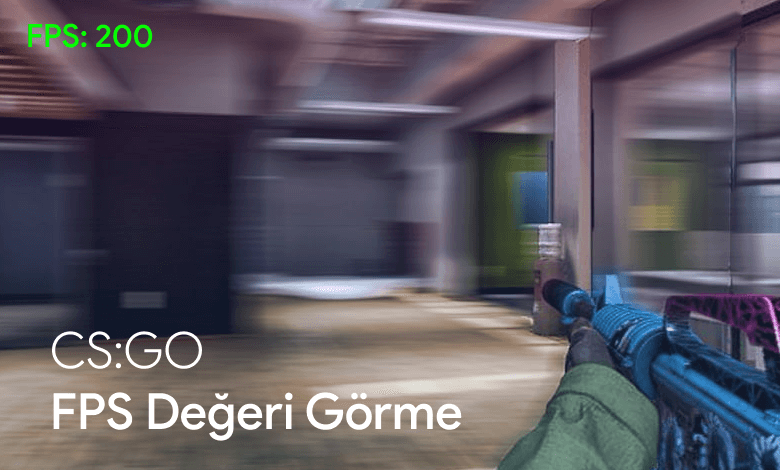
How Do You Display Your FPS in CSGO?
Follow these steps to see the FPS you are getting in CSGO:
- Open your Steam library and launch CS:GO.
- Press the "é" key on your keyboard to open the CSGO command console.
- Enter "clshowfps 1" in the console and press Enter.
- Look for the "fps" text in the upper-left corner to see your FPS value.
You can now view the FPS you are getting in the game.
Displaying Your FPS in CSGO
What Are the CS GO FPS Boost Commands?
CSGO is an action-packed and competitive FPS game. It is important for the game to run smoothly and deliver a stable frame rate, as this has a direct effect on player performance.
In some situations, low FPS or stuttering can have a negative effect on the gaming experience. You can use several commands to increase FPS in CS:GO. Some CS GO FPS boost commands are listed below:
- Set the "fps_max" command to "0" to remove the FPS limit.
- Set the "mat_queue_mode" command to "2" to enable multicore processing.
- Set the "r_drawtracers_firstperson" command to "0" to reduce visual effects.
- Set the "r_eyegloss" command to "0" to reduce eye reflections.
- Set the "cl_disable_ragdolls" command to "1" to reduce the impact of moving objects.
- Set the "snd_mix_async" command to "1" to speed up audio processing.
Console command:
fps_max 0; mat_queue_mode 2; r_drawtracers_firstperson 0; r_eyegloss 0; cl_disable_ragdolls 1; snd_mix_async 1;Boosting FPS with CS GO Launch Options
After removing the limit with commands such as fps max 0, you can try different launch options to configure CS GO for higher FPS. You need to add these commands through the CSGO settings in Steam.
To open the CS GO Launch Options, first right-click CS GO in your Steam library. Click "Properties" in the menu that appears. Click Launch Options and enter the options you want to use.
Launch options that can boost FPS include:
- "-high" parameter: This parameter makes the game run at high priority and ensures that CPU resources are allocated to it.
- "-threads" parameter: You can set this parameter according to the number of cores in your processor. For example, if you have a four-core processor, the "-threads 4" parameter lets the game use all of your cores.
- "-nod3d9ex" parameter: This parameter disables Windows Aero for the game and improves FPS performance.
- "-nojoy" parameter: This parameter disables in-game joystick controls and improves FPS performance.
- "-novid" parameter: This parameter skips the game's opening video and lets the game start faster.
- "-tickrate 128" parameter: This parameter increases the server tick rate and provides a smoother gaming experience.
- "-freq" parameter: You can set this parameter to your monitor's refresh rate to achieve higher FPS performance.
- "-console" parameter: This parameter opens the console window when the game starts, providing faster access to game settings.
You can also read our Best CSGO Launch Options article in this section.
Other Ways to Increase FPS in CS GO
CS:GO is a game that requires strong FPS performance. You can improve its FPS by using several methods, such as lowering graphics settings, reducing the default resolution, closing programs running in the background, updating drivers, closing browsers, and optimizing your system.
These methods prevent freezing and slowdowns while you play, providing a smoother gaming experience. If you are experiencing FPS problems, try these methods to make the game more enjoyable:
- Lower the graphics settings: Reducing the game's graphics settings can increase FPS. Disabling or reducing enabled visual features can improve performance in particular.
- Lower the default resolution: Reducing the game's default resolution can help you achieve higher FPS values.
- Close programs running in the background: Programs running in the background while you play can consume CPU and RAM resources and reduce FPS performance. Closing background programs during gameplay can therefore improve FPS.
- Update your drivers: Old or outdated drivers can have a negative effect on game performance. Keeping your drivers up to date can improve FPS performance.
- Close browsers: Browsers use CPU resources and can reduce game performance. Closing any browsers that are open while you play can improve FPS.
- Optimize your system: Deleting unnecessary files and applications, running a virus scan, and applying other optimization methods to improve system performance can also increase FPS.
- Get a better graphics card: The graphics card is an important factor when playing demanding games. Buying a better graphics card can improve game performance and deliver higher FPS values. It also allows you to raise graphics settings and improve the game's appearance.
In this article, we covered different ways to increase FPS in Counter-Strike: Global Offensive. You can make the game run more smoothly with in-game codes and commands, launch options, graphics settings, and other optimization methods. Improving FPS performance can enhance your gaming experience and give you an advantage in competitive play. Remember, every game and system is different, so try the different FPS-boosting methods to find the option that works best for you.
More of our articles that can improve your gameplay performance:


