We have compiled the CSGO Screenshot settings for you so that you can capture the best image in the game. With these settings, you can capture a cinematic image and get the most aesthetic photos in the game with CSGO Best Screenshot Settings.
The settings we will show now hide the in-game interface (weapon section, score, map, etc.) areas. It even lets you throw your knife on the ground. In this way, you can view the map you are playing in full screen. Note that you need to enable the developer console first. We shared with you how to enable it in our article opening csgo console.
CSGO Cinematic Screenshot Taking
First, we activate the cheats and make the codes workable.
sv_cheats 1;To turn off weapon, equipment, health and score notifications;
cl_draw_only_deathnotices 1;To drop your knife;
mp_drop_knife_enable 1;And some commands that may be useful for you to edit server settings:
mp_limitteams 0;
mp_autoteambalance 0;
mp_roundtime 60;
mp_roundtime_defuse 60;
mp_maxmoney 60000;
mp_startmoney 60000;
mp_freezetime 0;
mp_buytime 9999;
mp_buy_anywhere 1;
If you are wondering what exactly these commands do, you can view them in full detail in our article called CSGO Console Codes.
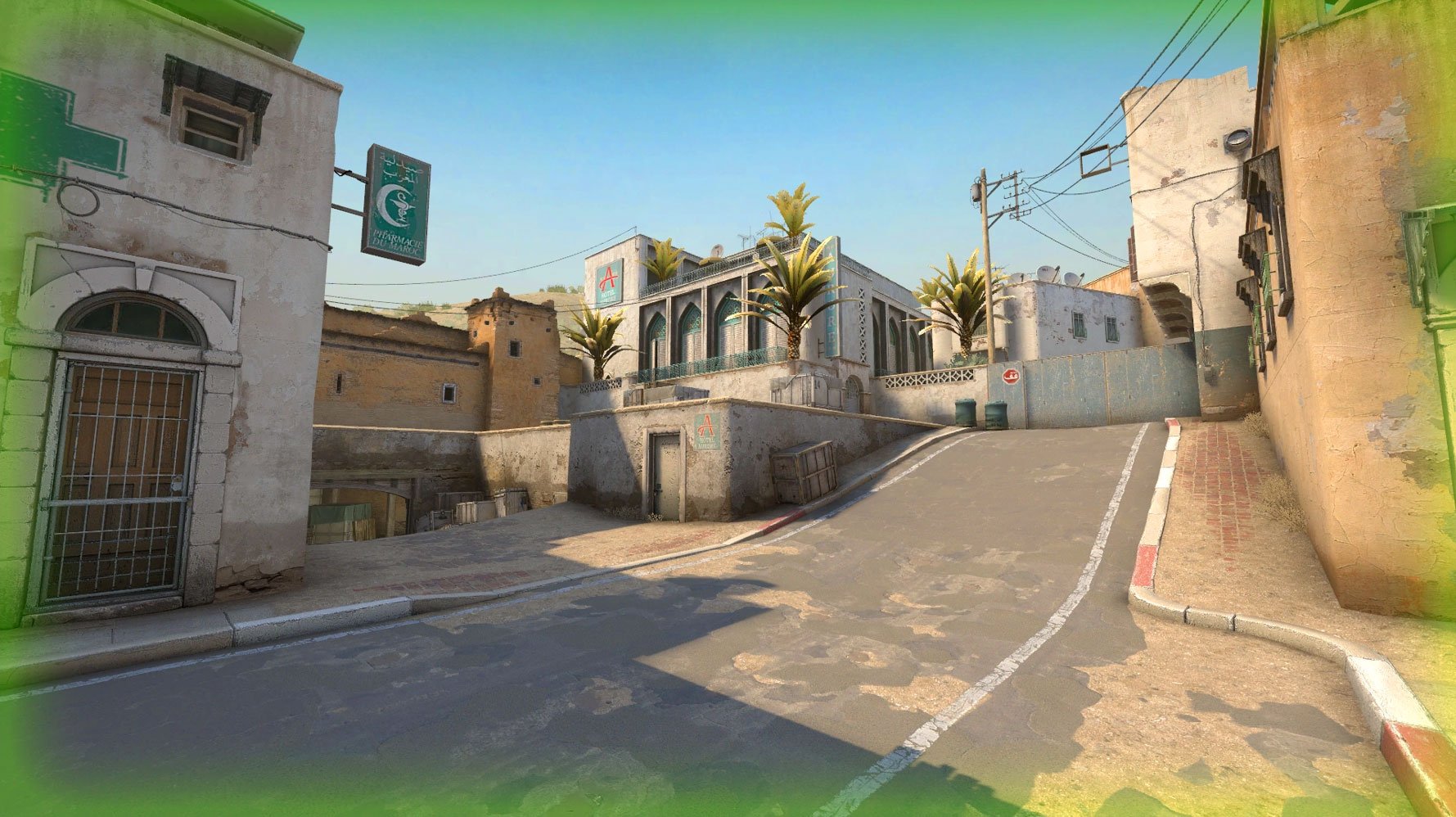
csgo cinematic screenshot
To fly on the map;
noclip;You can also change the map just by using the console without leaving the server, here;
changelevel [map];Thanks to CSGO Best Screenshot Settings, you can use the photos you have captured during the game as your desktop background photo, or use them as thumbnails for your Youtube channel, or you can play the game on a simpler screen this way, depending on your preference.
Thank you for reading CSGO Screenshot Taking! If you are interested in the Best Screenshot Settings for CSGO, you can take a look at our content below.


